
 caHome
 caMail
 caManagement
 caBlog
 caSupport
 Billing
 caAtlas
 caWeb
caWeb
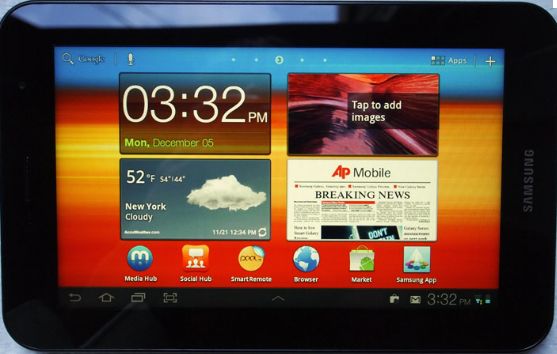 Many people have already upgrade their tablets this year to one of the latest Samsung Galaxy Tab to capture more features such as email, Internet, networking on the way to and from work, and etc. To save you time from your office, you can email your boss reports or memos from your mobile device (tablets) even if you forget to send your report to the boss. Also you can send everyone updates on your mobile device. Overall, you can do it all on your Samsung Galaxy Tab.
Today, I will show you how to set up an Email Account on your T-Mobile Galaxy Tab 7.0 plus that can be applied to other devices similar to Samsung Galaxy Tab.
Initial Connection Set-up for Internet Email Account on Samsung Galaxy Tab 7.0 Plus:
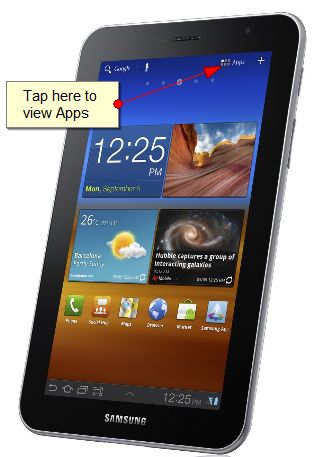
From a Home screen, tap (Apps)➔ (Email)

At the Set up email account screen, enter an Email address and Password below:
- Login Information
- Username: yourName@yourDomain.com
- Password: **************
Tap Manual setup to manually configure the new email
account connection and configurations settings.
If you are asked, “What type of account?” Tap IMAP account on your mobile device then include the following:
- User Information
- Your Name: Your Display Name
- E-mail Address: yourName@yourCompany.com
- Server Information
- Account Type: IMAP
- Incoming Mail Server: imap.centennialarts.com
- Outgoing Mail Server (SMTP): smtp.centennialarts.com
– or –
Review the Account options screen and make your
selections. Available options vary, depending on the
provider:
Optional Step: The availability of these options can depend on the Internet email
provider being used for the new email account.

- Peak schedule: Set how often to check for new email sent to this account during peak times.
- Options are: Push, Manual, 5 minutes, 15 minutes, 1 hour, 4 hours, or 12 hours.
- Off-peak schedule: Set how often to check for new email sent to this account during off-peak times. Options are: Push, Manual, 5 minutes, 15 minutes, 1 hour, 4 hours, or 12 hours.
- Email check frequency: Set how often to check for new email.
- Options are: Never, Every 5 minutes, 10 minutes, 15 minutes, or 30 minutes, Every hour, Every 4 hours, or Once a day.
Optional Step for setting up size of your emails:
- Emails retrieval size: Set the maximum email retrieval size.
- Options are for Headers only: 0.5 KB, 1 KB, 2 KB, 5 KB, 10 KB, 20 KB, 50 KB, or 100 KB, or All.
- Send email from this account by default: When enabled, email
from your device is automatically sent from this account. - Notify me when email arrives: When enabled, you receive
notifications when you receive new email sent to this account. - Sync email from this account: For accounts that can sync
different kinds of information, check to sync email between your
tablet and the email service.
Tap Next to go to the next screen or tap Previous to go to the Apps screen.
At the Setup email account screen, name the account and enter a screen name to identify yourself on this account from Step 2.
- The unique account name is used to differentiate this account from other email accounts accessed by your device.
- Messages for this account display on the Inbox tab. You can also view Personal information for this account, Receipts (if you setup the account to return receipts), Travel information, and more (if available).
Tap Done to store the new account.
- The device communicates with the appropriate server to set up your account and synchronize your email. When complete, your email appears in the Inbox for the account.
- Note: To configure email account settings at any time, tap (Menu) ➔ Settings.2
Connectivity Problems:
Verify all account settings are correct including user name, password, domain, and server address. For more information on the Samsung Galaxy Tab, check out Samsung Galaxy Tab Support or you can contact Centennial Arts at 979-209-0774 if you have any questions. For information on similar devices, check out these websites below.
Sources:



We just published the latest article check out this link http://www.centennialarts.com/support/2012/06/18/email-setup-for-t-mobile-galaxy-tab-on-all-samsung-devices/ and let us know what you think, we love your feedback.